
Words first. Then everything else.
Wordwall is a menu bar app that blocks the apps and websites that pull you away from your book, and opens them again the moment you've written today's words in WritingHabit.macOS 13 Ventura or later. Free with a WritingHabit account; Pro adds sprints and daily goals over 250 words.
Three steps, then write
Set it up once. After that, the only way past the wall is through your writing.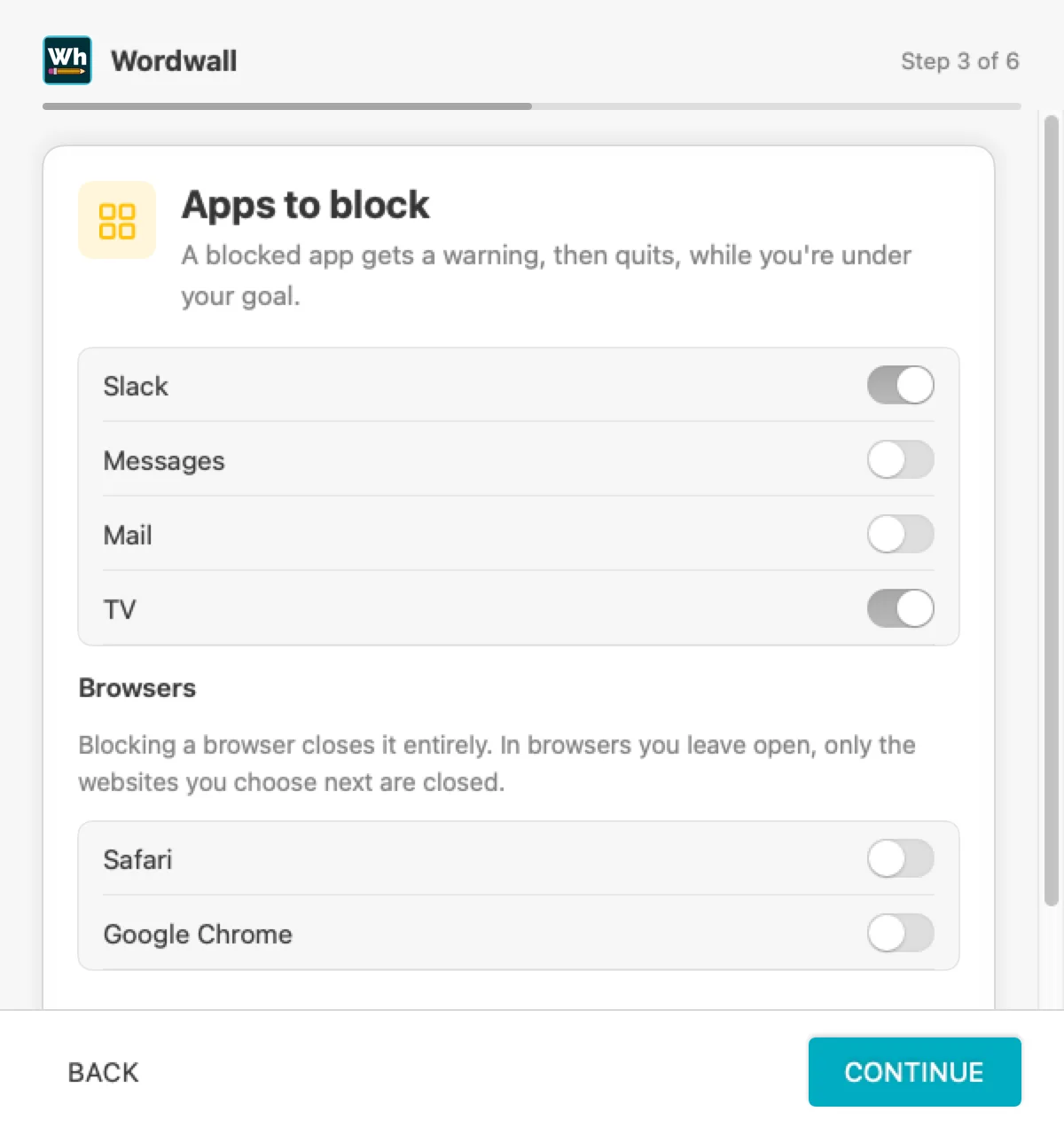
Choose your distractions
Pick the apps that pull you away, like Slack, Messages or Steam, and the websites, like YouTube and Reddit. The browser you write in stays open; only the sites you chose are closed inside it.
Set your daily minimum
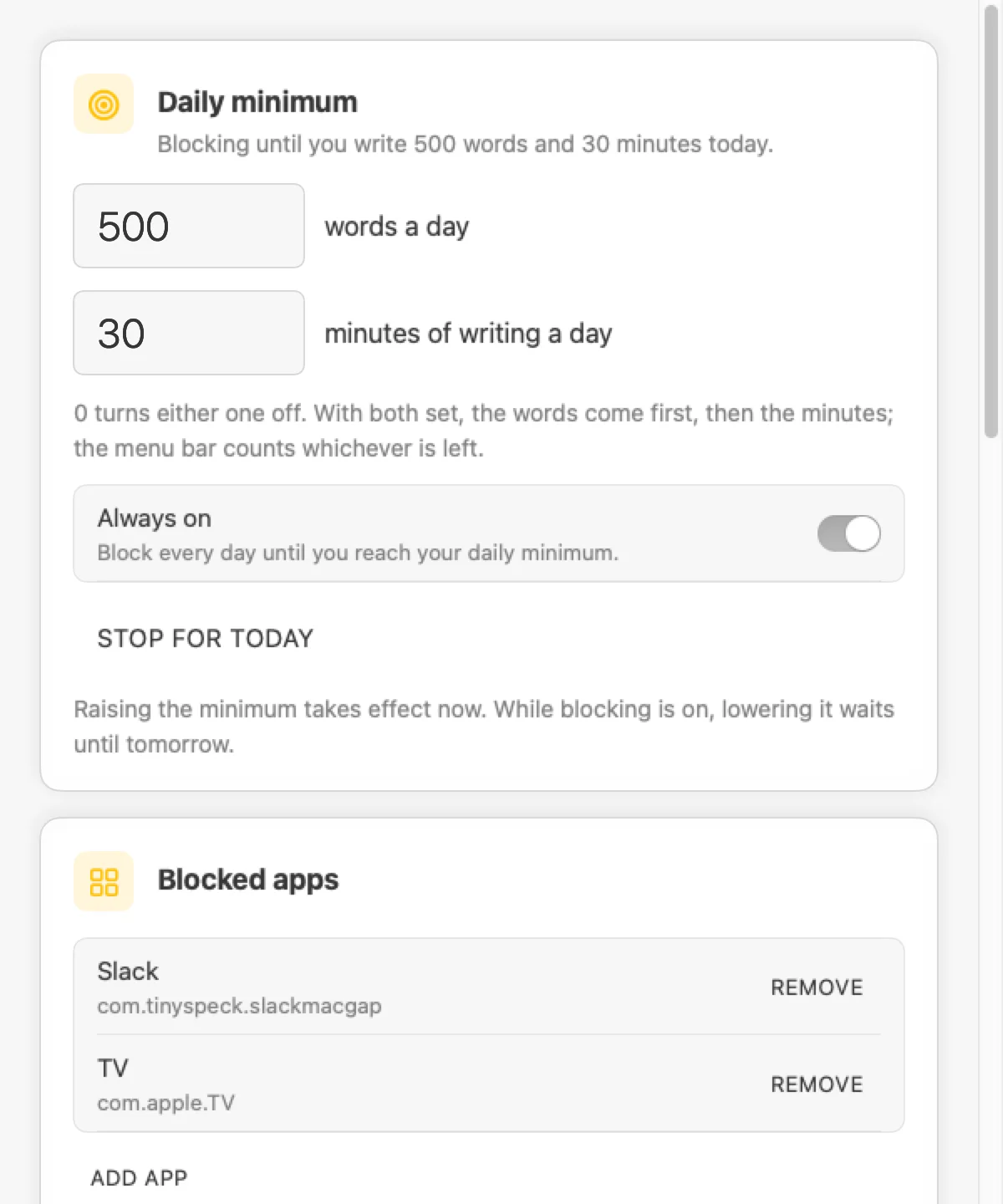
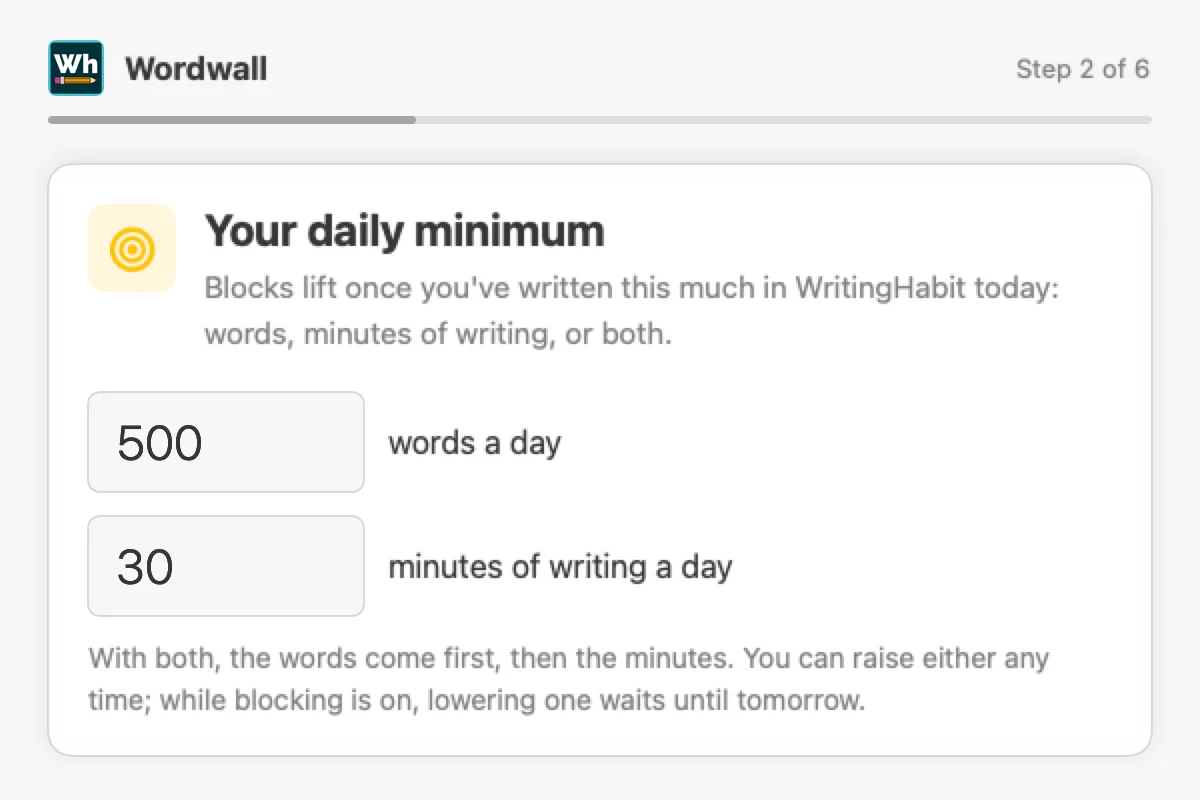
Decide what earns your afternoon back: a number of words, minutes of writing, or both. Press Start when you sit down to write, or turn on Always on and Wordwall blocks every day until you've done it.
Write. Then it unlocks.
Write in WritingHabit as you normally do. Wordwall watches your words and minutes, and the moment you reach your minimum, everything opens again for the rest of the day.
Words and minutes, together
A word count alone can be met in one fast burst. Time alone can go on polishing a single paragraph. Set both and Wordwall asks for real effort: so many new words, then so many minutes of actual writing.Words first
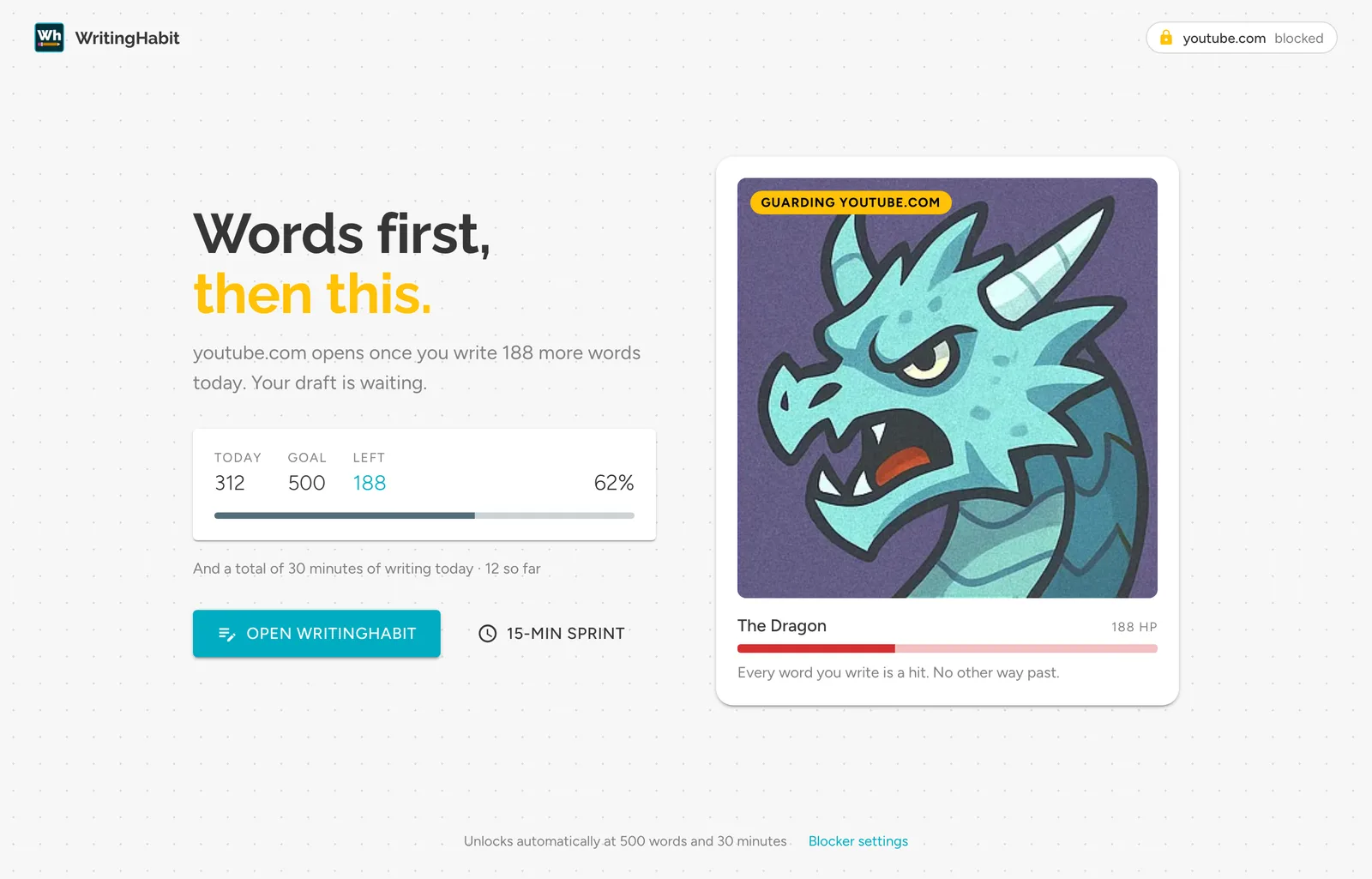
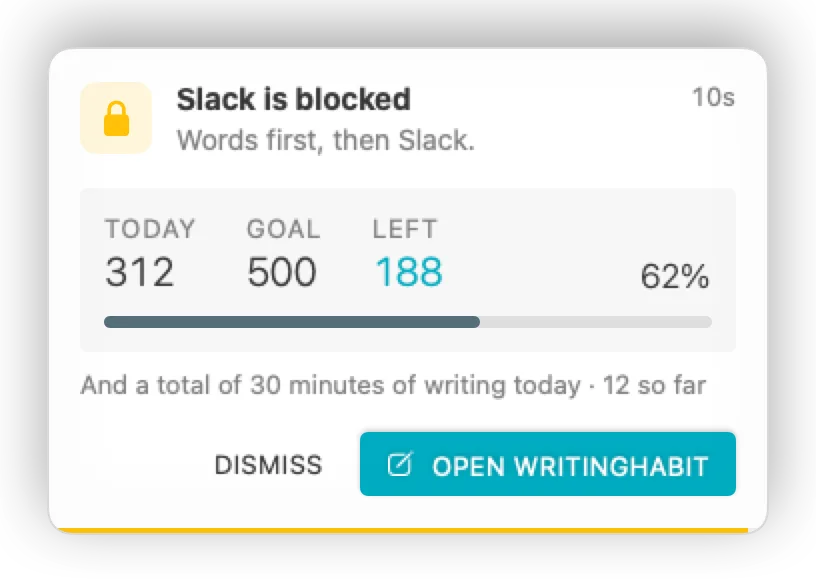
While you're under your word goal, the menu bar counts words: 312/500.
Then minutes
Once the words are done, it counts minutes of writing: 12/30m. Everything unlocks when both are met.
Either on its own
Set a 0 to turn one off. A minutes-only day suits editing, when the word count barely moves.
Only time spent writing
Minutes come from your WritingHabit sessions, so an open, idle document doesn't count.
Raise either goal whenever you like. While a block is running, lowering one waits until tomorrow, so it can't be a way out.
Firm, never in your way
A wall, not a nag
Open a blocked app and it gets a short countdown, then quits. A blocked tab turns into a page showing how many words stand between you and it.
Never in the way of writing
WritingHabit is never blocked, and neither is the browser you write in unless you choose to block it. Wordwall warns you before you lock yourself out of every browser.
Hard to talk yourself out of
Stopping early means typing out a sentence about what you're choosing over your book. No pasting. Most days, writing the words is easier.
Sprints for one more round
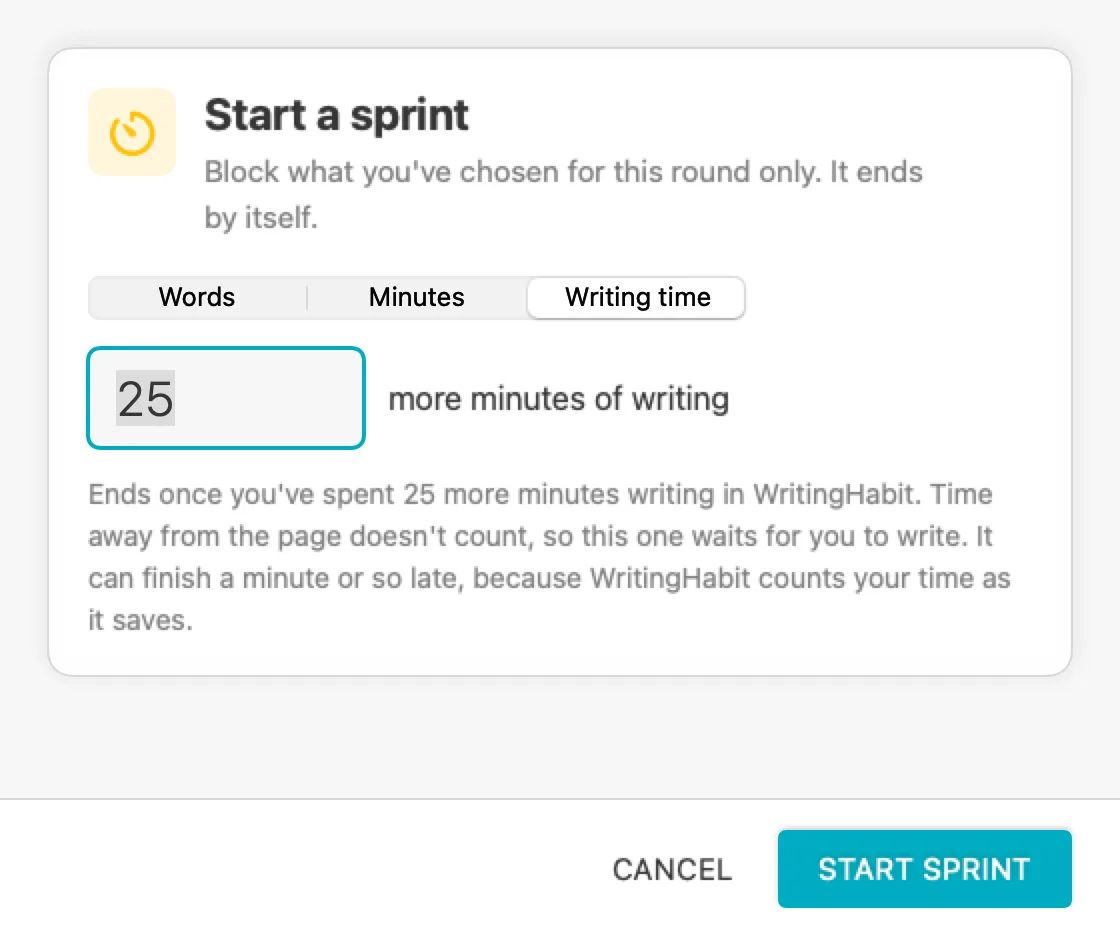
Goal met but on a roll? Start a sprint: block everything again for 500 more words, 25 minutes on the clock, or 25 more minutes of actual writing. The menu bar counts it.
Sees two numbers
Wordwall knows how many words and minutes you wrote today, and whether you have Pro. It never sees your writing, and nothing about the apps you use leaves your Mac.
Counts every word
Words you write in the WritingHabit studio count, and so do words written through our Google Docs, Obsidian and Word integrations.
One more round
Hit your minimum and still on a roll? Start a sprint from the menu bar, three ways: until you've written 500 more words, for the next 25 minutes on the clock, or until you've spent 25 more minutes actually writing. Writing time leaves out time away from the page, so it waits for you to write. Every sprint starts at zero, and the menu bar counts it.Sprints are for this round only. They end by themselves and never change your settings.
Free to start
Free
A daily minimum of up to 250 words, plus any minutes of writing
Block any apps and websites
Start each day, or Always on
The block page, warnings and the typed-sentence lock
Pro
Any word goal, as high as you like
Sprints: block for more words, minutes on the clock, or minutes of writing
Everything else in WritingHabit Pro
Upgraded or cancelled? Wordwall checks your plan each time it checks your words, and whenever it starts, wakes or opens Settings.
Up and running in a few minutes
Download Wordwall and open it
Open Wordwall.dmg from your Downloads. A window shows Wordwall beside your Applications folder.
Drag Wordwall into Applications, then open it
Open it from Applications, not from the download window. Setup starts by itself the first time.
Sign in and choose what to block
Setup walks you through it: connect your WritingHabit account, pick the apps and websites to block, and set your daily minimum. Nothing is blocked until you press Start.
Let Wordwall see your browser's tabs
To close a blocked site without closing your browser, Wordwall reads the address of each open tab. The first time it looks, macOS asks whether Wordwall may control Safari, Chrome or whichever browser you use: choose OK. Wordwall reads only the addresses, never what's on the page, and they never leave your Mac.
Good to know
Choose Check for Updates from Wordwall's menu, or enable automatic checks in Settings. When a new version is available, Wordwall shows an update reminder and lets you choose when to install. Finish blocking or your sprint before updating. If your older copy has no update option, download and install the latest version once to get it.
Yes. Wordwall is free with a WritingHabit account, for a daily minimum of up to 250 words. WritingHabit Pro removes that limit and adds sprints.
Not yet. Wordwall is a Mac app and needs macOS 13 Ventura or later.
Safari, Chrome, Brave, Edge and Arc: Wordwall closes just the blocked sites and leaves the browser open. Firefox and some others don't let apps read their tabs, so in those you can only block the whole browser.
That's how macOS names the permission an app needs to read a browser's tab addresses. Wordwall uses it only to spot a blocked site and close that tab. It never reads what's on a page, and the addresses never leave your Mac.
Your daily minimum can be words, minutes of writing, or both. With both, you write the words first, then the menu bar counts your minutes, and everything unlocks once both are met. Minutes come from your WritingHabit writing sessions, so only time spent writing counts.
The words you type in WritingHabit today: in the studio, or through the Google Docs, Obsidian and Word integrations. A minimum can also be minutes of writing, alone or after the words. Wordwall checks your count about once a minute while it's blocking, and straight away when you open something blocked.
A new day starts at zero. If Always on is set, blocking starts again until you reach your minimum; otherwise nothing is blocked until you press Start.
Yes. Stopping a block, removing a blocked app or quitting Wordwall all ask you to type out a sentence first. It's deliberately a little annoying, never impossible.
Only today's word count, minutes of writing, and whether you have Pro. It never sees what you write, and the list of apps and sites you block stays on your Mac.